
It is very important to setup a static IP address, if you are going to use port forwarding. When you set up port forwarding, your router forwards ports to an IP address that you specify. Without setting up a static IP address port forwarding will probably work when you initially set it up, but after restarting your Xbox 360 it may get a different IP address. When this happens the ports will no longer be forwarded to your Xbox 360's IP address. So the port forwarding configuration will not work.
What is an IP address?
IP addresses are four sets of numbers separated by periods that allow computers to identify each other. Every computer has at least one IP address, and two devices should never have the same IP address. If they do, neither of them will be able to connect to the internet. There is a lot of information at the following link. You don't need all of it. But if you want to know more about how networks work, you'll find it there. For more information on IP addresses, subnets, and gateways go here
Dynamic vs Static IPs Most routers assign dynamic IP addresses by default. They do this because dynamic IP address networks require no configuration. The end user can simply plug their computer or console in, and their network will work. When IP addresses are assigned dynamically, the router is the one that assigns them. Every time a computer or console reboots it asks the router for an IP address. The router then hands it an IP address that has not already been handed out to another computer or console. This is important to note. When you set your Xbox 360 to a static IP address, the router does not know that the Xbox 360 is using that IP address. So the very same IP address may be handed to another computer or console later, and that will prevent both devices from connecting to the internet. So when you asign a static IP addresses, it's important to assign an IP address that will not be handed out to other devices by the dynamic IP address server. The dynamic IP address server is generally refered to as the dhcp server.
Setting up a static IP for your Xbox 360.
Step 1:
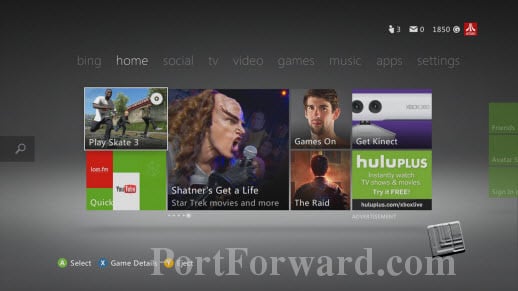
Turn on your Xbox 360. You should now be at the following page.
Step 2:
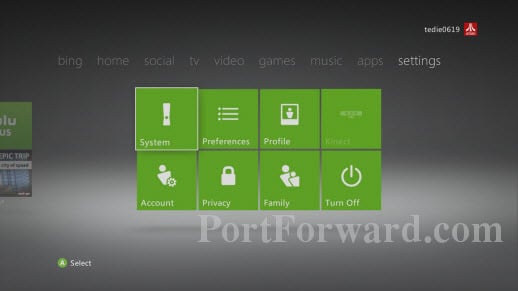
Use the right bumper on your controller to scroll over to the Settigns category heading. Make sure that your cursor is highliting System, then push the A button.
Step 3:
Highlight Network Settings from the list, then push the A button.

Step 4:
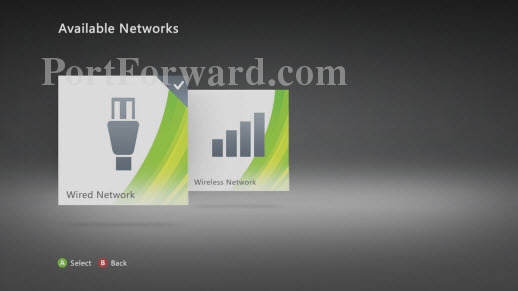
Choose either Wired Network or Wireless Network depending on weather you are connected wirelessly or wired directly. Choose the option with a check mark in the top right corner, then push the A button.
Step 5:
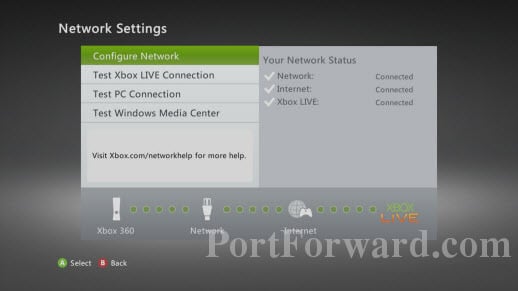
Highlight Configure Network, then push the A button.
Step 6:
Highlight the IP Settigns area, then push the A button.
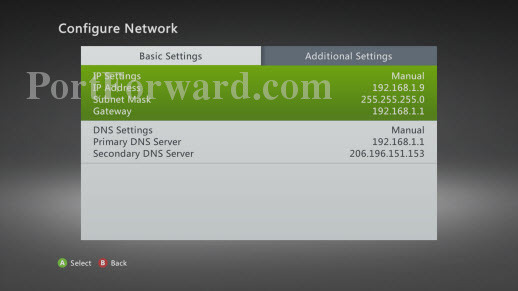
Step 7:
Highlight the Manual option, then push the A button.
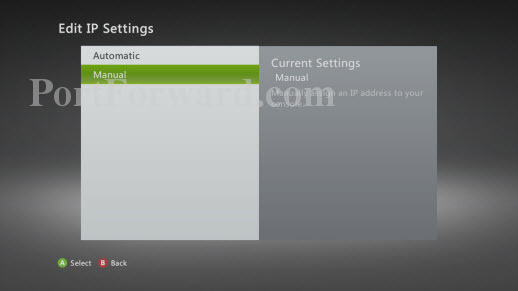
Step 8:
Highlight the IP Address option, then push the A button.

Step 9:
Enter the the IP address you want to use for your Xbox 360 into this page. It's important to choose an IP address that not in your router's dhcp range. You can check this by login in to your router and looking at it's dhcp or LAN page. Alternatively you can just pick an IP address that is not close to the IP address your Xbox was previously using. For instance if your Xbox was using something like 192.168.1.2, then you would want the new IP address to be something like 192.168.1.200. If your Xbox was using something like 192.168.1.240, then you would want the new IP address to be something like 192.168.1.2. Only the last group of numbers on the IP address should change, and that group of numbers would range from 2 to 254. Please, don't over think this just pick a number and go with it. I have just tried to provide some guidelines here so you can pick a better number. Once you are done entering the IP address press the Start/Done button.
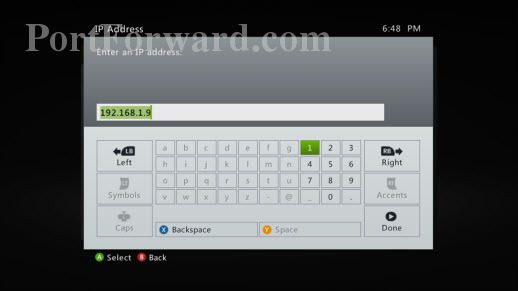
Step 10:
Highlight the Subnet Mask option on this page, then push the A button.
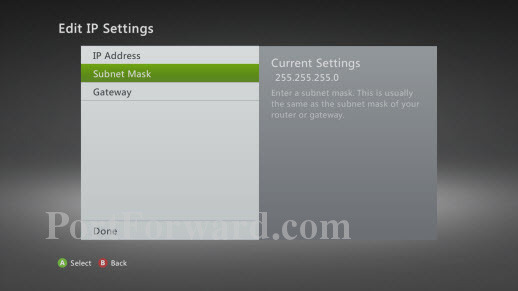
Step 11:
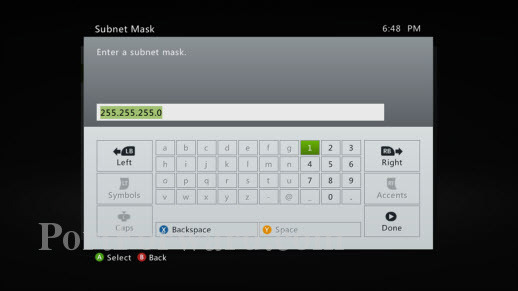
Enter the subnet mask of your network in to this page. The subnet mask for almost all home networks is 255.255.255.0. When you are finished push the Start/Done button.
Step 12:
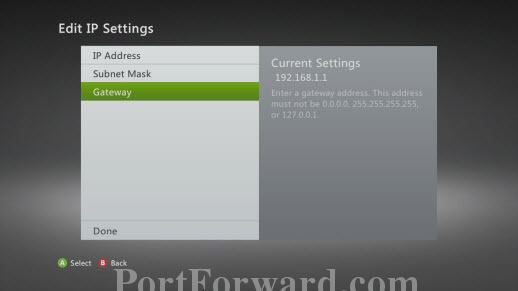
Highlight the Gateway option on this page, then push the A button.
Step 13:
Enter the IP address of your router into this page. Your router is your network's gateway. Then push the Start/Done button.

Step 14:
It is now time to test your Xbox LIVE Connection. Push the B button to get back to the Network Settings page. Then highlight the Test Xbox LIVE Connection option on this page, and then push the A button.

Step 15:
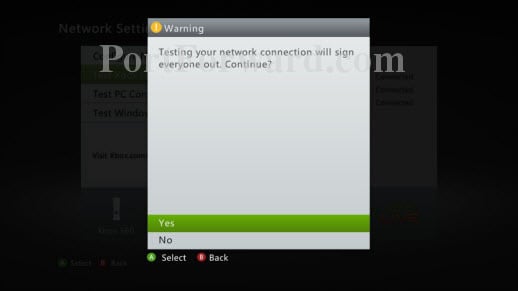
You will be warned that testing your network connection will sign everyone out. Highlight Yes, then push the A button.
Step 16:
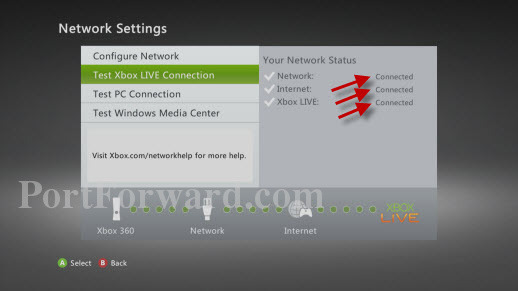
Check to make sure that your Network, Internet, and Xbox LIVE statuses are connected. If any one of them is not then you have made an error in setting up the static IP address for your Xbox 360.
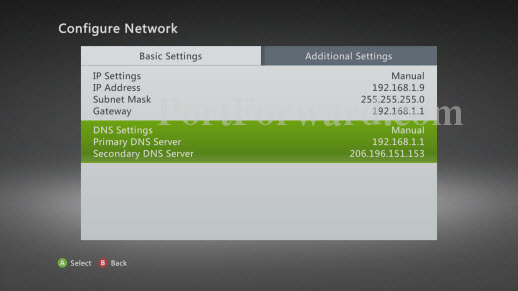
You may also have to specify the DNS servers your Xbox 360 will be using. This is usually required when your network's router is not passing the DNS server information to the computers that have static IP address properly. First you need to find out what DNS servers your Xbox 360 should be set to. The easiest way to do this is to give your ISP a call. They will probably ask you why you need them. Tell them the truth, your Xbox 360 is requesting them. They should give you two IP addresses, one for the primary DNS server and one for the secondary DNS server. Once again get back to the Configure Network screen of your Xbox 360 as shown below.
Highlight the DNS Settings area, and then push the A button.
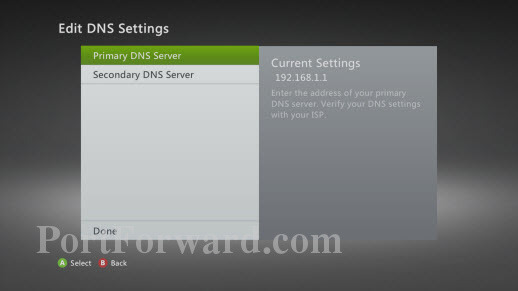
Highlight the Primary DNS Server option, then push the A button.
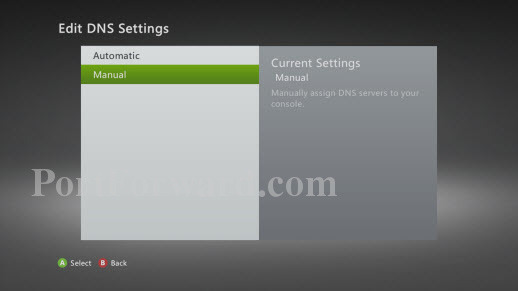
Highlight the Manual option, then push the A button.
Enter the primary DNS server address your ISP gave you on this page. Then push the Start/Done button.

Now enter the secondary DNS server in to the secondary DNS server section in the same fashion.
When you are finished setting up your secondary DNS settings, highlight the Done option. Then push the A button.
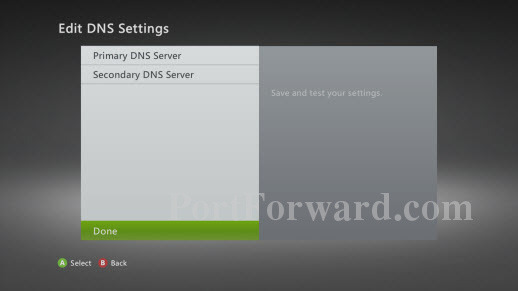
Navigate back to the Network Settings screen by using the B button, and test your Xbox LIVE Connection once more.
Your Xbox 360's Test Xbox LIVE results should be "Connected." If it is not then you have made an error in setting up your IP address or DNS servers for your Xbox 360.